
Master Multi-Index in Pandas:
Handle Multi-Dimensional Data Like a Pro
A Complete Guide with Line-by-Line Code Explanations and Interactive Examples
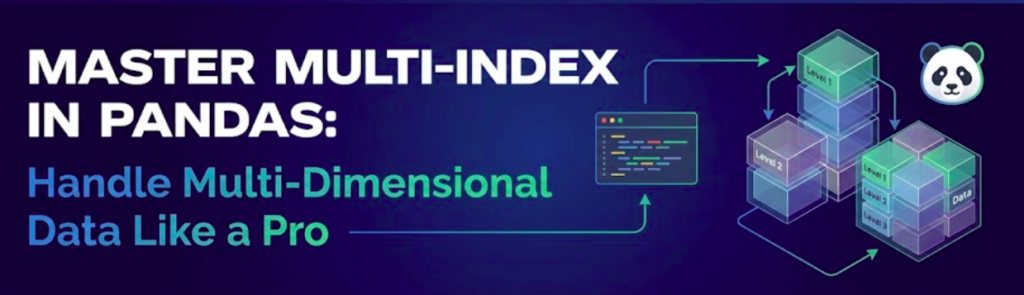
Working with hierarchical data is a common requirement in analytics, especially when you want to group your data by multiple dimensions—such as store → department, region → category, or year → quarter. Pandas offers a powerful feature for this: MultiIndex.
In this comprehensive guide, we’ll walk through practical MultiIndex examples using Pandas + Streamlit, showing you how to create, access, manipulate, and restructure multi-level indexed data. Every line of code is explained in detail, with beautiful tabular outputs to help you understand exactly what’s happening.
By the end of this tutorial, you’ll be able to handle complex hierarchical datasets with confidence, perform advanced data slicing operations, and transform your data structures effortlessly.
📚 Essential Pandas Reading
Level up your data manipulation skills with these expert-recommended books
By Wes McKinney (Pandas Creator) • Master NumPy, Pandas, and IPython for efficient data wrangling
95 practical recipes for scientific computing, time series analysis, and data visualization
Complete guide to efficiently performing data collection, wrangling, and analysis with Python
💡 Affiliate links · Your purchase supports this blog at no extra cost to you
🎯 Key Concepts You’ll Master
- Levels: Each index level represents a different dimension (e.g., Store, Department)
- Cross-sections: Extract data from specific index levels using
xs() - Stacking/Unstacking: Reshape data between different hierarchical levels
- Index Manipulation: Swap, sort, reset, and recreate multi-level indexes
- Data Access: Use
loc[]with tuples to access specific combinations
1. Creating the Multi-Index DataFrame
We’ll start by creating a sales dataset with two index levels: Store and Department. This represents a common real-world scenario where you want to analyze sales data across different stores and departments.
1import pandas as pd
2import numpy as np
3import streamlit as st
What This Does:
- Line 1: Import pandas for data manipulation
- Line 2: Import numpy for numerical operations
- Line 3: Import streamlit for creating interactive web apps
4# Creating a Multi-Index DataFrame
5arrays = [
6    ['Store A', 'Store A', 'Store B', 'Store B'],
7    ['Electronics', 'Clothing', 'Electronics', 'Clothing']
8]
What This Does:
- Line 5-8: Create two arrays that will form our MultiIndex
- First array (line 6): Store level – Store A appears twice, Store B appears twice
- Second array (line 7): Department level – alternating between Electronics and Clothing
- Structure: Creates combinations: (Store A, Electronics), (Store A, Clothing), (Store B, Electronics), (Store B, Clothing)
9index = pd.MultiIndex.from_arrays(arrays, names=['Store', 'Department'])
What This Does:
- from_arrays(): Creates a MultiIndex from our two arrays
- names parameter: Assigns names ‘Store’ and ‘Department’ to the two levels
- Result: A hierarchical index with Store as level 0, Department as level 1
10data = {
11    'Q1_Sales': [50000, 30000, 45000, 28000],
12    'Q2_Sales': [55000, 32000, 48000, 30000],
13    'Q3_Sales': [60000, 35000, 50000, 31000]
14}
What This Does:
- Q1_Sales (line 11): Sales data for Quarter 1 for all 4 store-department combinations
- Q2_Sales (line 12): Sales data for Quarter 2
- Q3_Sales (line 13): Sales data for Quarter 3
- Order: Values correspond to: Store A-Electronics, Store A-Clothing, Store B-Electronics, Store B-Clothing
15df = pd.DataFrame(data, index=index)
16st.subheader("Multi-Index DataFrame:")
17st.write(df)
What This Does:
- Line 15: Creates a DataFrame with our data dictionary and the MultiIndex
- Line 16: Displays a subheader in Streamlit
- Line 17: Displays the DataFrame in Streamlit app
📊 Output: Multi-Index DataFrame
| Q1_Sales | Q2_Sales | Q3_Sales | ||
|---|---|---|---|---|
| Store | Department | |||
| Store A | Electronics | 50000 | 55000 | 60000 |
| Clothing | 30000 | 32000 | 35000 | |
| Store B | Electronics | 45000 | 48000 | 50000 |
| Clothing | 28000 | 30000 | 31000 | |
2. Accessing Data for Store A
One of the most powerful features of MultiIndex is the ability to slice data at different levels of the hierarchy.
18# Accessing data using multi-index
19st.subheader("Store A data:")
20st.write(df.loc['Store A'])
What This Does:
- df.loc[‘Store A’]: Selects all rows where the first level index equals ‘Store A’
- Result: Returns both Electronics and Clothing departments for Store A
- Index after selection: Only the Department level remains (single-level index)
📊 Output: Store A Data
| Department | Q1_Sales | Q2_Sales | Q3_Sales |
|---|---|---|---|
| Electronics | 50000 | 55000 | 60000 |
| Clothing | 30000 | 32000 | 35000 |
3. Accessing Store B, Electronics
To access a specific combination of index values, use a tuple with loc[].
21# Accessing specific combination
22st.subheader("Store B, Electronics:")
23st.write(df.loc[('Store B', 'Electronics')])
What This Does:
- Tuple syntax:
('Store B', 'Electronics')specifies both index levels - First element: ‘Store B’ matches the Store level
- Second element: ‘Electronics’ matches the Department level
- Result: Returns a Series (single row) with sales data for that specific combination
📊 Output: Store B, Electronics
| Quarter | Sales |
|---|---|
| Q1_Sales | 45000 |
| Q2_Sales | 48000 |
| Q3_Sales | 50000 |
4. Cross-Section: All Electronics Departments
The xs() method allows you to take a “cross-section” of your data at a specific level, regardless of other level values.
24# Cross-section (xs) - get all Electronics departments
25st.subheader("All Electronics departments:")
26st.write(df.xs('Electronics', level='Department'))
What This Does:
- xs(‘Electronics’): Extracts all rows where Department equals ‘Electronics’
- level=’Department’: Specifies which level to filter on
- Result: Returns data for Electronics from BOTH Store A and Store B
- Remaining index: Only the Store level remains
📊 Output: All Electronics Departments
| Store | Q1_Sales | Q2_Sales | Q3_Sales |
|---|---|---|---|
| Store A | 50000 | 55000 | 60000 |
| Store B | 45000 | 48000 | 50000 |
5. Swapping Index Levels
Sometimes you want to change the order of your index levels to enable different types of analysis or sorting.
27# Swapping index levels
28st.subheader("Swapped index levels:")
29st.write(df.swaplevel())
What This Does:
- swaplevel(): Swaps the order of the two innermost index levels
- Before: Store (level 0) → Department (level 1)
- After: Department (level 0) → Store (level 1)
- Data unchanged: Only the index structure is reorganized
📊 Output: Swapped Index Levels
| Q1_Sales | Q2_Sales | Q3_Sales | ||
|---|---|---|---|---|
| Department | Store | |||
| Electronics | Store A | 50000 | 55000 | 60000 |
| Clothing | Store A | 30000 | 32000 | 35000 |
| Electronics | Store B | 45000 | 48000 | 50000 |
| Clothing | Store B | 28000 | 30000 | 31000 |
6. Sorting by Department then Store
After swapping levels, you’ll often want to sort the data by the new index order.
30# Sorting by index
31st.subheader("Sorted by Department then Store:")
32st.write(df.swaplevel().sort_index())
What This Does:
- Step 1 – swaplevel(): Changes Department to be the first level
- Step 2 – sort_index(): Sorts by the index levels in order (Department first, then Store)
- Result: Data grouped by Department, with Stores sorted within each department
- Order: Clothing before Electronics (alphabetical), and within each, Store A before Store B
📊 Output: Sorted by Department then Store
| Q1_Sales | Q2_Sales | Q3_Sales | ||
|---|---|---|---|---|
| Department | Store | |||
| Clothing | Store A | 30000 | 32000 | 35000 |
| Store B | 28000 | 30000 | 31000 | |
| Electronics | Store A | 50000 | 55000 | 60000 |
| Store B | 45000 | 48000 | 50000 | |
7. Resetting the Index
Sometimes you need to convert your MultiIndex back to regular columns for exporting, merging, or further processing.
33# Reset index to regular columns
34df_reset = df.reset_index()
35st.subheader("Reset index:")
36st.write(df_reset)
What This Does:
- reset_index(): Converts all index levels to regular DataFrame columns
- New index: Creates a default integer index (0, 1, 2, 3)
- New columns: Store and Department are now regular columns
- Use case: Useful for saving to CSV, creating pivot tables, or merging with other data
📊 Output: Reset Index
| Store | Department | Q1_Sales | Q2_Sales | Q3_Sales | |
|---|---|---|---|---|---|
| 0 | Store A | Electronics | 50000 | 55000 | 60000 |
| 1 | Store A | Clothing | 30000 | 32000 | 35000 |
| 2 | Store B | Electronics | 45000 | 48000 | 50000 |
| 3 | Store B | Clothing | 28000 | 30000 | 31000 |
8. Re-creating the MultiIndex from Columns
You can easily convert regular columns back into a MultiIndex using set_index().
37# Set multi-index from columns
38df_multi = df_reset.set_index(['Store', 'Department'])
39st.subheader("Re-created multi-index:")
40st.write(df_multi)
What This Does:
- set_index(): Converts specified columns into index levels
- List order: [‘Store’, ‘Department’] defines the hierarchy (Store is level 0)
- Result: Returns us to the original MultiIndex structure
- Reversible: You can switch between flat and hierarchical formats as needed
📊 Output: Re-created Multi-Index
| Q1_Sales | Q2_Sales | Q3_Sales | ||
|---|---|---|---|---|
| Store | Department | |||
| Store A | Electronics | 50000 | 55000 | 60000 |
| Clothing | 30000 | 32000 | 35000 | |
| Store B | Electronics | 45000 | 48000 | 50000 |
| Clothing | 28000 | 30000 | 31000 | |
Conclusion: Mastering MultiIndex
MultiIndex is one of Pandas’ most powerful features for analyzing complex, hierarchical datasets. Throughout this tutorial, we’ve explored eight essential operations that will transform how you work with multi-dimensional data:
🎯 What You’ve Learned
- Creating MultiIndex: Build hierarchical indexes using
from_arrays()with named levels - Level-based Selection: Use
loc[]to select data from the first level - Tuple Selection: Access specific combinations using tuple syntax:
loc[('Store B', 'Electronics')] - Cross-sections: Extract data across levels with
xs()for powerful comparisons - Level Swapping: Reorganize hierarchy with
swaplevel()to change analysis perspective - Index Sorting: Combine
swaplevel()andsort_index()for clean grouping - Flattening: Convert to regular columns with
reset_index()for exports and merging - Reconstruction: Rebuild MultiIndex from columns using
set_index()
Real-World Applications
MultiIndex shines in scenarios like:
- Retail Analytics: Store → Department → Product hierarchy
- Time Series: Year → Quarter → Month for financial data
- Geographic Data: Country → Region → City for sales analysis
- A/B Testing: Experiment → Variant → Metric tracking
- Survey Data: Question → Category → Response analysis
Next Steps
To further master MultiIndex, explore:
- Aggregations: Use
groupby()with level parameter for hierarchical summaries - Stack/Unstack: Pivot between long and wide formats
- Index Slicing: Use
pd.IndexSlicefor complex selections - Performance: MultiIndex can improve query performance on large datasets
- Visualization: Many plotting libraries handle MultiIndex data elegantly
Using Streamlit for Interactive Exploration
This tutorial demonstrated how Streamlit transforms static Pandas code into interactive data exploration tools. With just a few lines of code (st.subheader() and st.write()), you can create web apps that allow stakeholders to explore hierarchical data without writing any code themselves.
To run this tutorial interactively:
- Save the code as
pandas_multiindex_demo.py - Run:
streamlit run pandas_multiindex_demo.py - Open the provided URL in your browser
- Explore the data interactively!
📊 Key Takeaways
- ✅ MultiIndex enables elegant handling of hierarchical data
- ✅ Use
loc[]with tuples for precise data selection - ✅
xs()is powerful for cross-sectional analysis - ✅
swaplevel()+sort_index()reorganizes your view of the data - ✅
reset_index()andset_index()provide flexibility between formats - ✅ Streamlit makes it easy to share your analyses interactively